Friday, 9 October 2015

Fixed - Windows 7 Installation A required CD/DVD device driver is missing, usb installation

Fixed - A required CD/DVD device driver is missing. If you have a driver floppy disk, CD, DVD, or USB flash drive, please inset it now. 
Windows 7 Installation 

I was getting below error when trying to install windows 7 from USB drive- I checked all the things i.e changed USB, USB ports, bios setup, windows setup on USB but nothing worked- 

A required CD/DVD device driver is missing. If you have a driver floppy disk, CD, DVD, or USB flash drive, please inset it now.  Windows 7 Installation
A required CD/DVD device driver is missing. If you have a driver floppy disk, CD, DVD, or USB flash drive..


Finally i did below which worked for me, i am sharing this which may help you....

1. Click Cancel on the above message box - you will get below message - click OK..


2. See below - Click "Yes" and then close this box...


3. See below- You will come back on  "welcome screen"


4. Now on welcome screen, remove your USB drive from your PC and insert back to other USB port. Now click Install again

Hope this will work for you and your installation will be normal. This worked for me....Try it


MBps Vs Mbps

In hindi -What is difference between MBps and Mbps
Compare MBps and Mbps

8 bits = 1 byte

1000 bytes = 8 kilobits (Kb) = 1 Kilobyte (KB)

1000 Kilobytes (KB) = 8 Mbps = 1 MBps


Mbps (Small "b") vs MBps (Capital "B")

Mbps: - megabit per second (Mbit/s or Mbps) डेटा ट्रांसफर की एक यूनिट होती है जो की 1,000,000 bits per second or 1,000 kilobits per second के बराबर होती है| 8 Megabits per second, 1 Megabyte per second (ie. 8 Mbps = 1 MBps) के बराबर होती है | 

MBps :- Mega Byte per second (MByte/s or MBps) डेटा ट्रांसफर की एक यूनिट होती है जो की 1,000,000 bytes per second or  1,000 kilobytes per second, or  8 Megabits per second के बराबर होती है | 

What is USB 3.0 Speed

In Hindi - What is USB 3.0 and what is USB 3.0 Speed
Know speed difference between USB 3.0 and USB 2.0 


USB ka full form Universal Serial Bus (USB) होता है जो की कंप्यूटर एवं इलेक्टॉनिक डिवाइस को कनेक्ट करने का एक इंटरफ़ेस है | USB 3.0, USB का तीसरा version है इससे पहले USB 1.0 and USB 2.0 आ चुके है | USB 3.0 मे एक नयी ट्रांसफर मोड होती है जिसको super speed  (SS) बोलते है , ये 5 Gbit/s (625 MB/S) तक डेटा ट्रांसफर केर सकती है | ये स्पीड USB 2.0 के तुलना मे 10 गुना ज्यादा है | USB 3.0 की तुलना मे USB 2.0 की स्पीड - 80 megabits per second (mbps), or 60 megabytes per second (MBps) होती है |

USB 3.0 के इंटरफ़ेस पर ब्लू कलर की coding strip होती है जिससे आप इसको पहचान सकते है |

usb 2.0 and usb 3.0

USB Release Date - 

USB 1.0           Jan 1996
USB 1.1          Sept 1998
USB 2.0  -       April 2000
          USB 3.0 -       November 2008


USB 3.0 summary of the major changes:-
  1. SuperSpeed
  2. Dual-bus architecture
  3. Asynchronous instead of polled traffic flow
  4. Dual-simplex simultaneous bi-directional data flow 
  5. Support for streaming 
  6. Fast Sync —N-Go technology
  7. Support for higher power
  8. Better power management


Thursday, 8 October 2015

How to Set Your Default Apps in Windows 10

How to Set Your Default Apps in Windows 10


You may have many files, apps, protocols and programs in windows 10 and windows makes it easy for you to open up these files by setting up default programs for each file type 

You can set default apps from - 

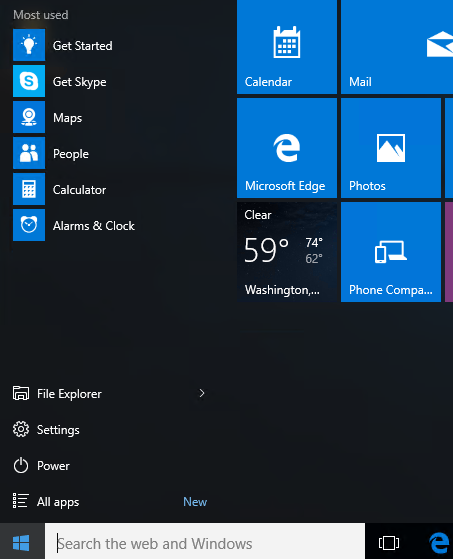
Click on Start - > Settings 


Click on System - > Default Apps


Click on Default apps - > 


Click on + to add default apps 


Now if you will scroll down, you will see three options, here you can choose your default app by file type or protocol type - 

1. Choose default apps by file type - In the below example, you can associate .bmp file with paint, photos or with other application (by downloading from app store)


2. Choose default apps by protocol - In the below example you can choose IE or Edge with FTP Protocol...


3. Set default by apps - It will set default as per windows standard

--------------


how to change computer name in windows 10

How to change computer name in windows 10

To change computer name / PC name in windows 10 - Click on Start Button - >


change computer name in windows 10

Select settings - > 


change computer name in windows 10

Select System ->


On the next window - Click about ->


Click "Rename PC"


change computer name in windows 10

Type your new computer name and click next ->


change computer name in windows 10


-------------------------


Wednesday, 7 October 2015

How to change windows 10 startup programs

How to add or remove, change startup apps programs in Windows 10

To open startup in windows 10, you can open task manger and then go to startup tab, see below - > 

Just click on search box , type task manager ->

search Task Manager in Windows 10
Search Task Manager in Windows 10

Now click on Task Manager - > 


Open Task Manager in Windows 10

Go to Startup Tab in Task Manager - Here you will see all the apps and programs which are in the startup. You can disable or remove them from the list- 

Startup Tab in Task Manager - Windows 10

Now from the list you can select any program or app and right click - You will see disable option, use this if you want to disable this item from startup -


Disable app program from startup

----------------------


Monday, 5 October 2015

how to enable ftp service in window 10 7

Install enable or activate ftp service in window 10, 8 and windows 7

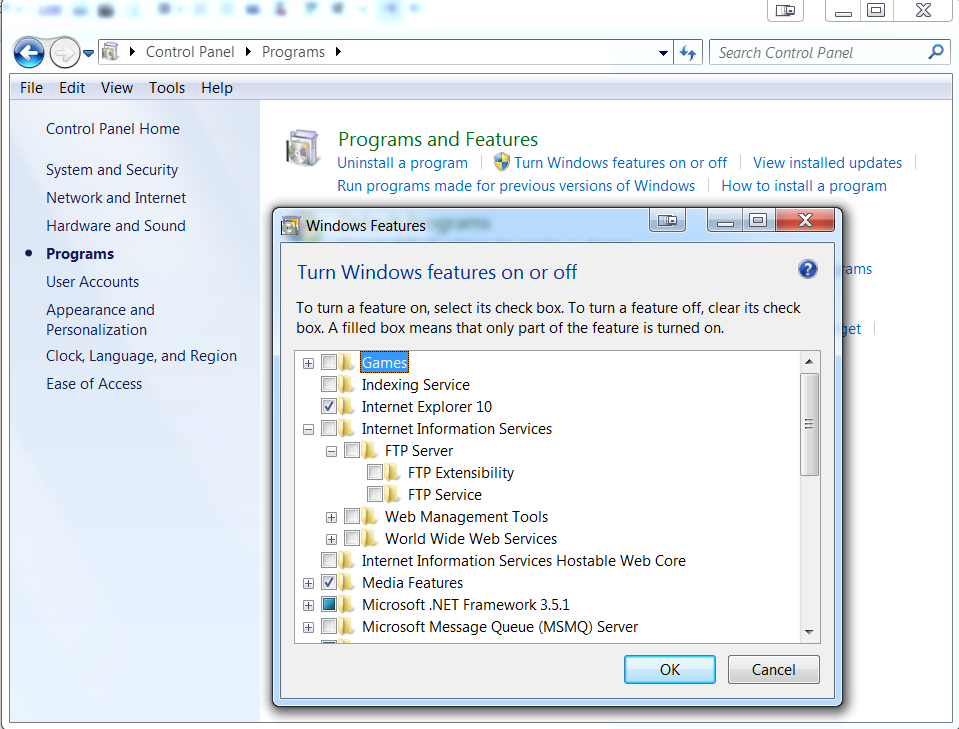
To enable FTP service in windows - 

Click on Start button
 Click Control Panel
Click Programs.
Under Programs and Features
Click Turn Windows features on or off.  
Windows Features dialog box, select IIS box.
Go to FTP Server - Select FTP service and OK
The installation might take several minutes.

See below- 

Enable FTP Service in Windows 7 10