Showing posts with label Blogger Tips. Show all posts

Thursday, 17 December 2015

How To Add A Facebook Like Button to Blogger Posts

How To Add A Facebook Like Button to Blogger Posts

Facebook Like button on your blogger post may helpful to increase visibility or to know audience choice and feedback. To know how to add facebook like button on blogger post, follow below steps and add few lines code with facebook plugin into your blogger. 

Step1

Go to your Blogger Dashboard and choose Edit HTML under template - 
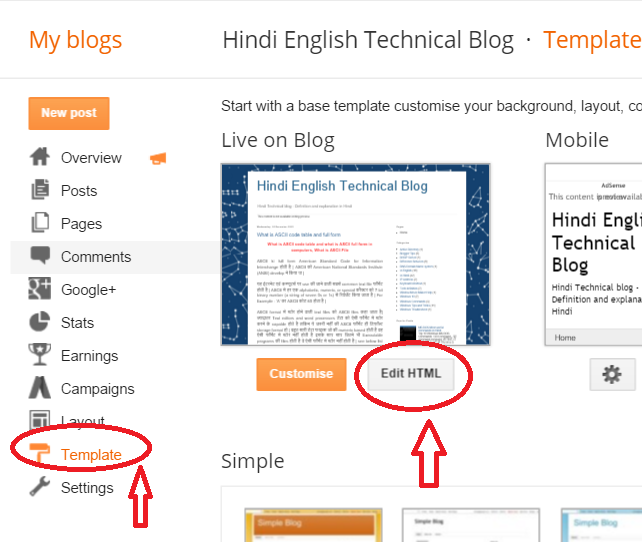
Facebook Like button on Blogger


Step 2

Now search <data:post.body/> in your code area ( Press CTRL + F Key to search it). You might find it 2 or more time but you need to copy this after 2nd instance of code. If it does not work for 2nd instance you can try to copy before 3rd instance. You need to copy code before this line of code (<data:post.body/> ). See below - 

Facebook Like button on Blogger

Step 3

Now copy given code and paste it - 

<p><iframe allowTransparency='true' expr:src='&quot;http://www.facebook.com/plugins/like.php?href=&quot; + data:post.url + &quot;&amp;layout=button_count&amp;show_faces=false&amp;width=100&amp; action=like&amp;font=arial&amp;colorscheme=light&quot;' frameborder='0' scrolling='no' style='border:none; overflow:hidden; width:100px; height:20px;'/></p>

After this save your template and check blogger, you should find Facebook Like button on every post.  See example - 

Facebook Like button on Blogger

Thursday, 10 December 2015

Customize the Width of Blogger Posts

In this Blogger post, you will learn how to increase, change or customize width of your Blogger Template or blogger website - 

You might feel that your blogger or website template design need to change or customize then you can follow steps and customize /increase width of your blogger - 

Step 1 

Go to your blogger dashboard and click "template".  Now click on Customise button - 

customize width of your Blogger Template

Step 2

Now click "adjust width" on the left side and adjust width using slider button. You can use this slider to increase, decrease blogger width. Here are two sliders "Entire Blog" and  "Right sidebar". See below - 

Blogger width
Blogger width


Friday, 27 November 2015

How to Start a Blog on Blogger -Creating a Blog on Blogspot

How to Start a Blog on Blogger- 
Blogger Getting Started Guide

Before we start "creating a blog steps" lets know what is Blogger. Blogger is a Online service which allow user to publish multi-user blogs. Google owned it which was developed by Pyra Labs (launched in 1999). Google bought from Pyra labs in 2003. 

Step -1 - Type www.blogger.com URL on your web browser. and sign in with your google account. If you do not have blogger account sign up a new account. 

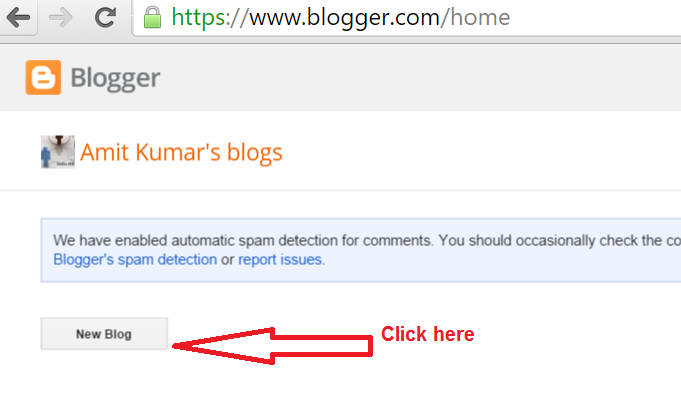
Step -2 - Once you login into the blogger account, you will see New Blog option in the left. Click here to start - see below - 

How to Start a Blog on Blogger
Step - 3 - Now in next box - Choose a suitable title, Name and Template (Design) for blog and click "Create Blog"- See below - 

How to Start a Blog on Blogger


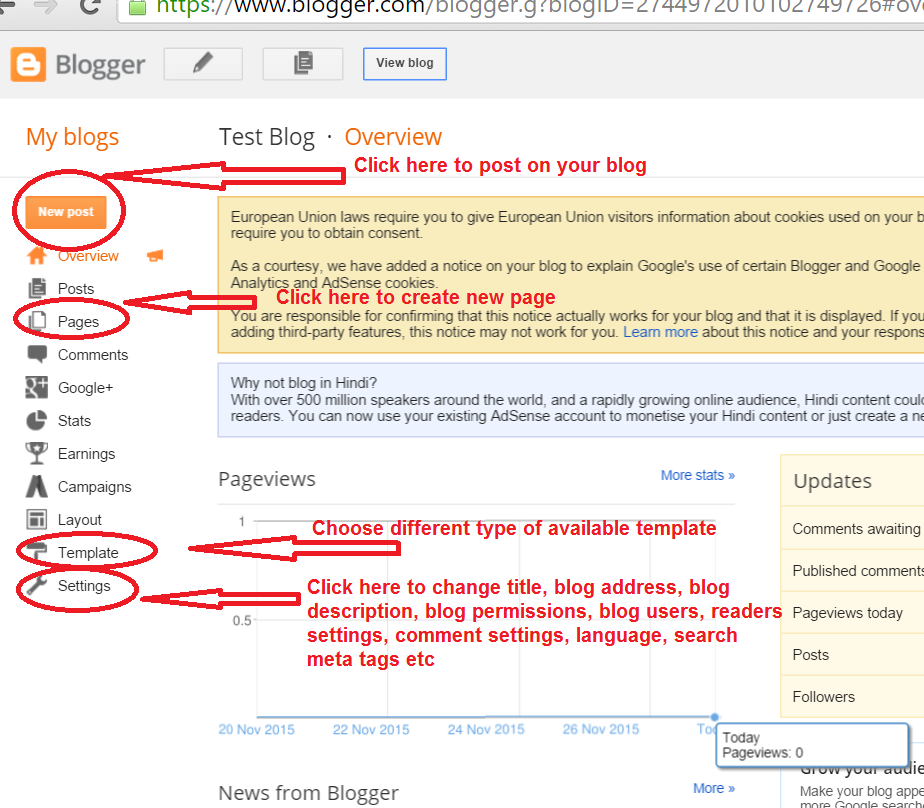
Step - 4 -  You are done with basic template with default settings - Now you can start posting your items and pages from different available options. See below - 


Creating a Blog on Blogspot


Tuesday, 24 November 2015

How To Set Up a Custom Domain in Blogger

Change Custom Domain Name for My Blog
Setup Custom Domain Name in Blogger


This is very much possible that you use blogspot domain name e.g hindipoetry.blogspot.com and later on you wanted to use your custom domain name. Your own custom domain name looks professional and easy to remember for users. Here, we are sharing tips to change blogspot sub domain name to your own professional custom domain name - See below - 

Step 1 - Go to your blog dashboard and then Settings on the bottom -> Basic Tab. Now under Publishing section, see your blogspot name and click on "set up a third-party URL for your blog" - 


Set Up a Custom Domain in Blogger

Step 2 -  Now enter your custom domain name (with www) follow Step 3. 

custom domain name in blogger
Set up a Custom Domain Name in Blogger


Step 3- It will prompt an error and also show you two CNAMEs. Each CNAMEs has two parts - one is "Name/Label/Host Name" and second is "Destination/Target/Points to".  First CNAME is same for every blogspot user but second CNAME is unique for every user as it is linked to your google account and blog. It is giving you an error because you have not linked your custom domain with google blogger hosting. Now you need to go to your Domain Provider and find DNS settings option. Under DNS settings add two CNAME given by blogspot.

Once you add these CNAMEs on your domain registrar or domain name provider, click save. Now it will save without any error. 


Step 4 - See above - If you want to open your website without www, this will not open until you will select above option (redirect domainname.com to www.domainanme.com). 

Saturday, 21 November 2015

how to stop copying content from blogger

How to Disable /Stop Copy Paste content from your Blogger Blog

Prevent from Copying Your Content from Blogger


You might have faced this issue that people copy your blog post content and use it for their own purpose. They might use stolen content on their website or for other commercial purpose. Now don't worry we will provide a way which you can implement on your blog and prevent them. Follow steps - 
Step 1 - Login to your blogger account and go to Layout -

Prevent from Copying Your Content from Blogger

Step 2 - Once you click Layout tab, it will show many options - select "add a gadget" - In the Gadget, select select " HTML/Java Script" -

Prevent from Copying Your Content from Blogger

Step 3 - In the box- copy and paste content - (see below)

<!—start of prevent copy paste content-->
<script 
src="demo-to-prevent-copy-paste-on-blogger_files/googleapis.js">
</script><br /><script type="text/javascript">
if (typeof document.onselectstart!="undefined" ) { 
document.onselectstart=new Function ("return false" ); } else{
document.onmousedown=new Function ("return false" ); 
document.onmouseup=new Function ("return true" ); } 
</script>
<!—start of prevent copy paste content--></!—start></!—start>


Prevent from Copying Your Content from Blogger


Step 4 - save this and visit your blog. You will find that you can not right click anywhere on the blog content. 

Thursday, 19 November 2015

Remove or Hide Blogger Navbar Topbar or Titlebar

How to remove or Disable blogger Top Bar / Navbar

Every Blogger has default gadgets and one of them is Navbar on top. You can control these gadgets from Layout tab. Follow steps to disable, remove or choose another Navbar on your blog. 

Step 1- Login your Blog and go to "Layout" Tab 


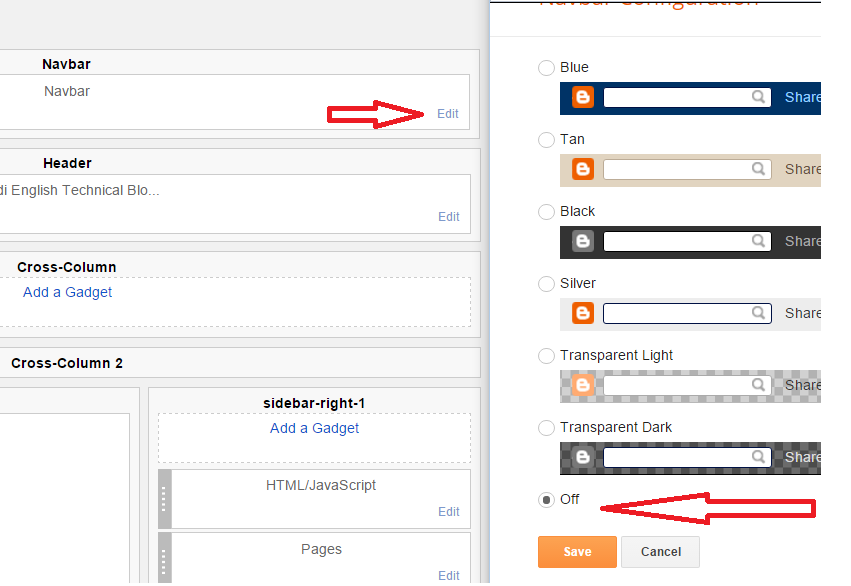
Step 2 - On the NavBar, Click Edit. this will pop up Navbar window with different options. Scroll down and choose "Off" to disable Navbar from your blog. 


This is all. It will remove Navbar from your blog. Later on if required you can follow above steps and enable it.