Showing posts with label Windows Tips and Tricks. Show all posts

Monday, 15 February 2016

how to show hidden files in windows 10

Windows 10 show hidden files and folders, how to show hidden files in windows 10, how to unhide hidden files windows 10, Windows explorer show hidden files -

To show the hidden files and folders, operating system files on your Windows 10 PC, you can follow simple steps given below - 

Step 1- Open "File Explorer" or "This PC (My computer icon)" on your computer - 


Step 2 - Click on view - 


Step 3 - Click on Options and this will open a box- 


Step 4 - Select "show hidden files, folders and drives option


Once you will select "show hidden files.." option, it will show all hidden files except system files. To show operating system files you need to uncheck from "hide protected OS files.."- See below - 


--------------------------

How to open add remove programs in windows 10

How to open add remove programs in windows 10 and uninstall a program, windows 10 uninstall programs, how to uninstall programs windows 10

You can open "add / remove programs" in windows 10 (given two methods) and select program / software which you want to uninstall - 

Method 1 - (by command)

Press the Windows + R key combination to open "run box", then type "appwiz.cpl" command and enter. It will open "Programs and Features"-


Above command will open "programs and features" box -


Now select program which you want to uninstall and click uninstall- This will prompt for uninstallation and then will remove program/software from your computer. 


Method 2 (without command)

Right click on Start button and choose "Control Panel" -


it will open up control panel- click "programs-uninstall a program" option and select a program from the list and uninstall it- 


This post will help you to open "add remove program" and uninstall a program from the list. 
--------------------------

Wednesday, 10 February 2016

How to Create Windows 10 bootable usb from iso

How to Create Windows 10 bootable USB from iso, how to make a bootable USB drive, free Microsoft software to create bootable USB

How to make a bootable USB drive - You can follow given steps for windows 7, 8, Vista and windows 10 - 

Step1 -To make bootable USB drive, download Free Microsoft Software from - https://www.microsoft.com/en-us/download/windows-usb-dvd-download-tool 

Step 2- Run setup file and install this - 


Step 3 - Once installed, open software/tool from Program menu. Choose windows "iso" file and click next. 


Step 4 - Insert USB Drive (make sure it has sufficient space) and select "USB Device" option (below)...


Step 5- It will take some time and will create windows USB bootable drive. You can use this USB bootable drive to install, repair window. 

Most Popular Windows Networking Commands

10 Most Popular Windows Networking Commands pdf, basic networking commands,  windows command line system administration

1. Ipconfig - Internet Protocol configuration

Syntax

  IPCONFIG /all         Display full configuration information.
   IPCONFIG /release [adapter]  -  Release the IP address for the specified adapter.
   IPCONFIG /renew [adapter]   -  Renew the IP address for the specified adapter.
   IPCONFIG /flushdns              -   Purge the DNS Resolver cache.
  IPCONFIG /registerdns           -  Refresh all DHCP leases and re-register DNS names.
  IPCONFIG /displaydns           -  Display the contents of the DNS Resolver Cache.


2. Nslookup -  This command allow a user to resolve or look up an IP Address of domain or host on the network. 

3. Nbtstat - Nbtstat can be used for NetBIOS over TCP/IP. Its primary design is to displays statistics and names information used by NetBIOS over TCP/IP (NetBT) connections.

4. Chkdsk - This command is short for Check Disk. This command checks file system for any error and repair file system error. 

5. Ping - This command can be used to test network connection between two connected devices. It checks and verify that particular IP address exists.

6. SFC - SFC stands for system file checker. This scans and verifies system files and repair if files are corrupted. 

7. Pathping - It can be used to identify network latency and network loss for each router and link in the path. This combines the functionality of PING and TRACERT.

8. Tracert - Traceroute is a command which show packet path. It determines the route to a destination by sending ICMP echo packets to the destination. So purpose of this utility is to show you the path your traffic takes when you are attempting to connect to another machine and to displays the delays that occur at each stop.

9. Route - It can be used to manually configure the routes in the routing table.

10. Getmac - Returns the media access control (MAC) address of network device. 


Friday, 5 February 2016

How to activate windows 10

How to activate windows 10 Pro Enterprise Home, Windows genuine product key activation windows 10

Activate Windows 10 after reinstalling windows 10 - अगर आप Windows 10 का free upgrade करते है या फिर windows store से नया windows 10 buy करते है तो आप आपकी डिवाइस के लिए digital entitlement होते है | Digital entitlement का मतलब आपकी device पर आप windows 10 product key enter किये बिना ही reinstall कर सकते है | Reinstallation के time अगर windows 10 product key enter करने का message देता है तो आप skip कर सकते है एवं बाद मे installation complete होने के बाद जब कंप्यूटर online जाता है तो windows automatically activate हो जायेगा | 

How to activate windows 10 after windows 10 installation - 

अगर Windows installation के बाद आपने अभी तक genunine windows key enter नहीं की है तो आपको desktop पर windows is not activated का मैसेज आएगा | To activate windows 10 follow steps - 

Step 1 - Select the Start Start button and right click - > Choose system option - Then click Change Product key - 


Step 2 - Select Change product key, and then type the 25-character product key.


This will activate your windows 10. 


Sunday, 31 January 2016

How to boot Windows 10 in Safe Mode from Startup

How to boot Windows 10 in Safe Mode from Startup, Start windows 10 in safe mode, enable the F8 boot options menu in Windows 10

How to boot Windows 10 in Safe Mode (Using F8 key) - If you can login in windows 10 then its very easy to reboot system in safe mode but if windows gets corrupt and you get not successfully boot windows  10 then you can follow below step to get safe mode using F8 key - 

Step 1 - Use windows 10 bootable USB drive.

Step 2 - Change BIOS setting to boot computer from USB drive or press a key (which will give you option to boot computer from USB drive) to boot from USB . Choose "repair your computer" from below - 


Step 3- It will ask few options, choose suitable options - Troubleshoot > Advanced options > Command Prompt. 


At the command prompt, enter below commands and restart computer. After this you will be able to boot windows 10 in safe mode using F8 Key. 
 c:
 bcdedit /set {default} bootmenupolicy legacy

exit


Step 4- Now when your computer start keep pressing F8 during the boot process. Once it has been detected, you'll see the boot options menu where you can boot directly in to safe mode:-


In future if you want to disable or reverse this process use following command on the command prompt - 

bcdedit /set {default} bootmenupolicy standard

Now Windows 10 default faster boot will enable and F8 key will not give option to go in safe mode. 

--------------------

Saturday, 21 November 2015

Windows 10 keyboard shortcuts

Keyboard shortcuts - Windows 10 keyboard shortcuts


Here are some popular windows 10 keyboard shortcuts which are combination of two more more key. These windows 10 keyboard shortcut will help you in day to day windows activities - 

Friday, 20 November 2015

What is Credential Manager in Windows 10

What is Credential Manager in Windows 10
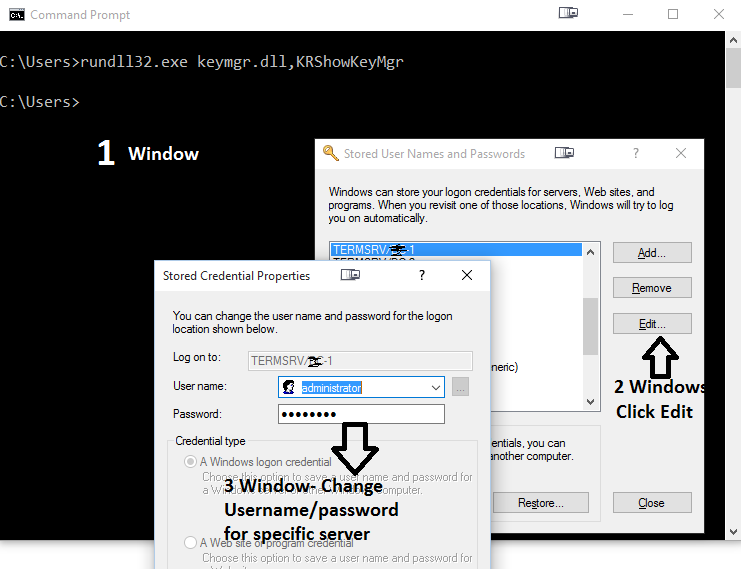
Credential Manager Command Line


जब आप, आपके computer से network मे किसी भी resource, computer or website को access करते हो तो  Windows credential manager आपके username and password को सेव करता है | बाद मे जब आप उन resources को वापस access करते है तो आपको आपके credential नहीं देने होते एवं windows, credential manager मे save username and password को use करके आपको authenticate करता है | credentials स्पेशल folders मे save होते है जिनको की vaults कहा जाता है | बाद मे अगर आप किसी भी network resource का username and password change करते है तो आपको credential manager मे भी specific vault मे जा कर पासवर्ड change करना पड़ सकता है otherwise window automatic login will not work for that resource. 

You can access "Windows Credential Manger" from - 

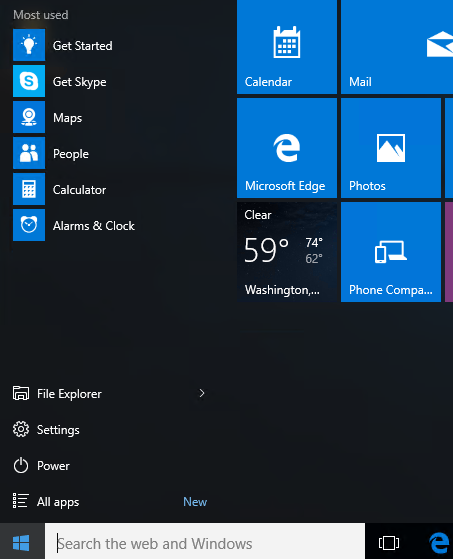
Click Start - Type credential manager and select from the list or go to control panel and search credential manager. 

credential manager
credential manager dialog box

You can use command to open "credential manager" box - 

Open a command prompt, or enter the following in the run command -  rundll32.exe keymgr.dll,KRShowKeyMgr

credential manager command line


Thursday, 12 November 2015

Msconfig Command Windows

What is Msconfig Command in Windows and how it works-

MSconfig Microsoft की एक system configuration utility है जो की windows के सभी version मिलती है | यह utility विंडोज 2000 को छोड़ कर , 1998 से लेकर आज तक विंडोज के सभी versions मे आ रही है | 

यह windows के startup process को troubleshoot करने के लिए काम मे आती है | इसको use करते हुए सिस्टम की startup services को, सॉफ्टवेयर को and device drivers को disable या enable कर सकते है | 

How to Open MSCONFIG :- 

Click on Start Button and type "msconfig" (either on run or search) - this will open below box :- 

MSCONFIG - General Tab 

msconfig windows utility

MSCONFIG - BOOT Tab -

यह TAB boot.ini फाइल मे जाये बिना ही आपको यहाँ से उसको edit करने की facility देती है | यहाँ से आप विंडोज टाइम आउट टाइम, boot log, OS इनफार्मेशन सेटिंग्स चेंज कर सकते है | यहाँ से आप safe boot ऑप्शन सेलेक्ट करके विंडोज को safe boot मे भी लोड कर सकते है |


MSCONFIG Services Tab 

इस TAB से आप विंडोज मे run हो रही किसी भी program की service को enable या disable कर सकते है 


MSCONFIG Startup Tab 

इस TAB से आप कंप्यूटर के स्टार्ट होते ही, स्टार्ट होने वाले प्रोग्राम्स को start or stop कर सकते है | ये startup programs ही कंप्यूटर को स्लो करते है क्योकि कभी कभी बहुत से unwanted programs होते है जो स्टार्टअप मे होते है और जो कंप्यूटर के स्टार्ट प्रोसेस को स्लो करते है | 


Friday, 9 October 2015

Fixed - Windows 7 Installation A required CD/DVD device driver is missing, usb installation

Fixed - A required CD/DVD device driver is missing. If you have a driver floppy disk, CD, DVD, or USB flash drive, please inset it now. 
Windows 7 Installation 

I was getting below error when trying to install windows 7 from USB drive- I checked all the things i.e changed USB, USB ports, bios setup, windows setup on USB but nothing worked- 

A required CD/DVD device driver is missing. If you have a driver floppy disk, CD, DVD, or USB flash drive, please inset it now.  Windows 7 Installation
A required CD/DVD device driver is missing. If you have a driver floppy disk, CD, DVD, or USB flash drive..


Finally i did below which worked for me, i am sharing this which may help you....

1. Click Cancel on the above message box - you will get below message - click OK..


2. See below - Click "Yes" and then close this box...


3. See below- You will come back on  "welcome screen"


4. Now on welcome screen, remove your USB drive from your PC and insert back to other USB port. Now click Install again

Hope this will work for you and your installation will be normal. This worked for me....Try it


Thursday, 8 October 2015

How to Set Your Default Apps in Windows 10

How to Set Your Default Apps in Windows 10


You may have many files, apps, protocols and programs in windows 10 and windows makes it easy for you to open up these files by setting up default programs for each file type 

You can set default apps from - 

Click on Start - > Settings 


Click on System - > Default Apps


Click on Default apps - > 


Click on + to add default apps 


Now if you will scroll down, you will see three options, here you can choose your default app by file type or protocol type - 

1. Choose default apps by file type - In the below example, you can associate .bmp file with paint, photos or with other application (by downloading from app store)


2. Choose default apps by protocol - In the below example you can choose IE or Edge with FTP Protocol...


3. Set default by apps - It will set default as per windows standard

--------------


how to change computer name in windows 10

How to change computer name in windows 10

To change computer name / PC name in windows 10 - Click on Start Button - >


change computer name in windows 10

Select settings - > 


change computer name in windows 10

Select System ->


On the next window - Click about ->


Click "Rename PC"


change computer name in windows 10

Type your new computer name and click next ->


change computer name in windows 10


-------------------------


Wednesday, 7 October 2015

How to change windows 10 startup programs

How to add or remove, change startup apps programs in Windows 10

To open startup in windows 10, you can open task manger and then go to startup tab, see below - > 

Just click on search box , type task manager ->

search Task Manager in Windows 10
Search Task Manager in Windows 10

Now click on Task Manager - > 


Open Task Manager in Windows 10

Go to Startup Tab in Task Manager - Here you will see all the apps and programs which are in the startup. You can disable or remove them from the list- 

Startup Tab in Task Manager - Windows 10

Now from the list you can select any program or app and right click - You will see disable option, use this if you want to disable this item from startup -


Disable app program from startup

----------------------