Showing posts with label Windows Commands. Show all posts

Wednesday, 10 February 2016

Most Popular Windows Networking Commands

10 Most Popular Windows Networking Commands pdf, basic networking commands,  windows command line system administration

1. Ipconfig - Internet Protocol configuration

Syntax

  IPCONFIG /all         Display full configuration information.
   IPCONFIG /release [adapter]  -  Release the IP address for the specified adapter.
   IPCONFIG /renew [adapter]   -  Renew the IP address for the specified adapter.
   IPCONFIG /flushdns              -   Purge the DNS Resolver cache.
  IPCONFIG /registerdns           -  Refresh all DHCP leases and re-register DNS names.
  IPCONFIG /displaydns           -  Display the contents of the DNS Resolver Cache.


2. Nslookup -  This command allow a user to resolve or look up an IP Address of domain or host on the network. 

3. Nbtstat - Nbtstat can be used for NetBIOS over TCP/IP. Its primary design is to displays statistics and names information used by NetBIOS over TCP/IP (NetBT) connections.

4. Chkdsk - This command is short for Check Disk. This command checks file system for any error and repair file system error. 

5. Ping - This command can be used to test network connection between two connected devices. It checks and verify that particular IP address exists.

6. SFC - SFC stands for system file checker. This scans and verifies system files and repair if files are corrupted. 

7. Pathping - It can be used to identify network latency and network loss for each router and link in the path. This combines the functionality of PING and TRACERT.

8. Tracert - Traceroute is a command which show packet path. It determines the route to a destination by sending ICMP echo packets to the destination. So purpose of this utility is to show you the path your traffic takes when you are attempting to connect to another machine and to displays the delays that occur at each stop.

9. Route - It can be used to manually configure the routes in the routing table.

10. Getmac - Returns the media access control (MAC) address of network device. 


Wednesday, 18 November 2015

What is Telnet and how telnet works - in Hindi

What is Telnet Command and How telnet works


Telenet Command TCP/IP नेटवर्क का terminal emulation program है जिसकी हेल्प से user रिमोट होस्ट or device को connect कर सकता है | इसके लिए यह पोर्ट 23 use करता है | 

Telnet Command की हेल्प से किसी भी रिमोट डिवाइस (अगर रिमोट डिवाइस telnet protocol use कर रही हो and टेलनेट access allow किया हुआ है) को मैनेज किया जा सकता है 

How Telnet Works : आप telnet command अपने कंप्यूटर मे run करते है उसके बाद उस server /machine का नाम देते है जिसको की आप कनेक्ट करना चाहते है | अगर रिमोट मशीन reachable होती है तो वो आपसे मशीन का username and password पूछने के बाद आपको मशीन एक्सेस करने का permission देती है | एक बार आप authenticate हो जाते है तो आप उसे रिमोट मशीन पर अपने कंप्यूटर से इस प्रकार काम कर सकते है जैसे की आप रिमोट मशीन पर ही काम कर रहे है | यह कमांड नेटवर्क एडमिनिस्ट्रेटर्स के लिए बहुत काम का है| 

Syntax - 


telnet [\\RemoteServer]

Telnet Command in Hindi
Telnet Command


Note - टेलनेट कमांड को insecure माना जाता है क्योकि यह सारा डेटा clear text  मे ट्रांसफर करता है इसका मतलब अगर कोई आपके नेटवर्क को स्निफ्फिंग (हैक करने के लिए मॉनिटर)  करता है तो वो easily आपका UserName, password and एंड other information hack कर सकता है | सिक्योरिटी के लिए आप अगर बहुत concern है तो आप इसका alternative SSH use कर सकते है जो की telent से जयदा secure है 

Thursday, 12 November 2015

Msconfig Command Windows

What is Msconfig Command in Windows and how it works-

MSconfig Microsoft की एक system configuration utility है जो की windows के सभी version मिलती है | यह utility विंडोज 2000 को छोड़ कर , 1998 से लेकर आज तक विंडोज के सभी versions मे आ रही है | 

यह windows के startup process को troubleshoot करने के लिए काम मे आती है | इसको use करते हुए सिस्टम की startup services को, सॉफ्टवेयर को and device drivers को disable या enable कर सकते है | 

How to Open MSCONFIG :- 

Click on Start Button and type "msconfig" (either on run or search) - this will open below box :- 

MSCONFIG - General Tab 

msconfig windows utility

MSCONFIG - BOOT Tab -

यह TAB boot.ini फाइल मे जाये बिना ही आपको यहाँ से उसको edit करने की facility देती है | यहाँ से आप विंडोज टाइम आउट टाइम, boot log, OS इनफार्मेशन सेटिंग्स चेंज कर सकते है | यहाँ से आप safe boot ऑप्शन सेलेक्ट करके विंडोज को safe boot मे भी लोड कर सकते है |


MSCONFIG Services Tab 

इस TAB से आप विंडोज मे run हो रही किसी भी program की service को enable या disable कर सकते है 


MSCONFIG Startup Tab 

इस TAB से आप कंप्यूटर के स्टार्ट होते ही, स्टार्ट होने वाले प्रोग्राम्स को start or stop कर सकते है | ये startup programs ही कंप्यूटर को स्लो करते है क्योकि कभी कभी बहुत से unwanted programs होते है जो स्टार्टअप मे होते है और जो कंप्यूटर के स्टार्ट प्रोसेस को स्लो करते है | 


Monday, 5 October 2015

Netstat command windows popular command

In Hindi - What is Netstat command
 Windows popular command

Netstat एक्टिव TCP कनेक्शंस, पोर्ट्स जिन पर कंप्यूटर एक्टिव है, ईथरनेट - IPv 4 (for the IP, ICMP, TCP, and UDP protocols) एवं IPv 6 स्टैटिक्स और IP routing table बताता है | 

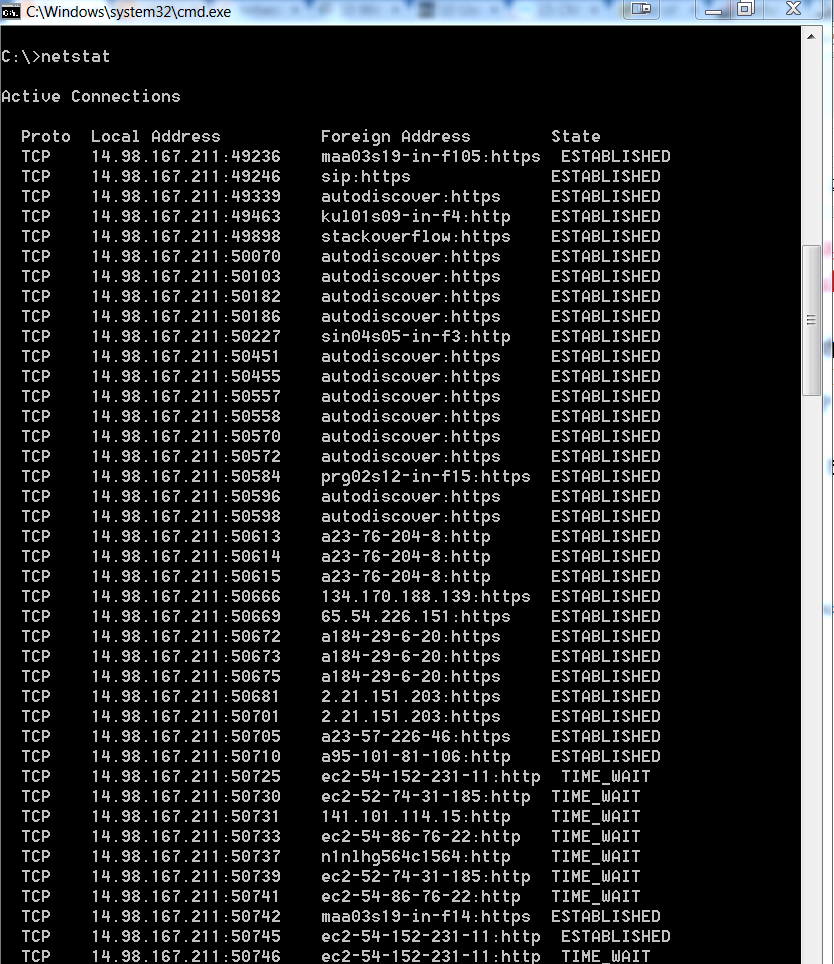
Without parameters के कमांड टाइप करने पर Active TCP connections को बताता है | 


netstat command for windows
netstat command


Syntax - 

Netstat [-a] [-e] [-n] [-o] [-p <Protocol>] [-r] [-s] [<Interval>]

netstat -a :- Displays all active TCP connections and the TCP and UDP ports on which the computer is listening

netstat -e :- Displays Ethernet statistics, such as the number of bytes and packets sent and received. This parameter can be combined with -s.

netstat n : Displays active TCP connections, however, addresses and port numbers are expressed numerically and no attempt is made to determine names.

netstat -o : Displays active TCP connections and includes the process ID (PID) for each connection. You can find the application based on the PID on the Processes tab in Windows Task Manager. This parameter can be combined with -a, -n, and -p.

netstat -p Protocol : Shows connections for the protocol specified by Protocol. In this case, the Protocol can be tcp, udp, tcpv6, or udpv6. If this parameter is used with -s to display statistics by protocol, Protocol can be tcp, udp, icmp, ip, tcpv6, udpv6, icmpv6, or ipv6.

netstat -s : Displays statistics by protocol. By default, statistics are shown for the TCP, UDP, ICMP, and IP protocols. If the IPv6 protocol for Windows XP is installed, statistics are shown for the TCP over IPv6, UDP over IPv6, ICMPv6, and IPv6 protocols. The -p parameter can be used to specify a set of protocols.

netstat -r : Displays the contents of the IP routing table. This is equivalent to the route print command.

Example - 

To display both the Ethernet statistics and the statistics for all protocols, type:  netstat -e -s

To display the statistics for only the TCP and UDP protocols, type: netstat -s -p tcp udp

To display active TCP connections and the process IDs every 5 seconds, type:  netstat -o 5

To display active TCP connections and the process IDs using numerical form, type:  netstat -n -o