Showing posts with label Windows Troubleshoot. Show all posts

Monday, 15 February 2016

how to show hidden files in windows 10

Windows 10 show hidden files and folders, how to show hidden files in windows 10, how to unhide hidden files windows 10, Windows explorer show hidden files -

To show the hidden files and folders, operating system files on your Windows 10 PC, you can follow simple steps given below - 

Step 1- Open "File Explorer" or "This PC (My computer icon)" on your computer - 


Step 2 - Click on view - 


Step 3 - Click on Options and this will open a box- 


Step 4 - Select "show hidden files, folders and drives option


Once you will select "show hidden files.." option, it will show all hidden files except system files. To show operating system files you need to uncheck from "hide protected OS files.."- See below - 


--------------------------

How to open add remove programs in windows 10

How to open add remove programs in windows 10 and uninstall a program, windows 10 uninstall programs, how to uninstall programs windows 10

You can open "add / remove programs" in windows 10 (given two methods) and select program / software which you want to uninstall - 

Method 1 - (by command)

Press the Windows + R key combination to open "run box", then type "appwiz.cpl" command and enter. It will open "Programs and Features"-


Above command will open "programs and features" box -


Now select program which you want to uninstall and click uninstall- This will prompt for uninstallation and then will remove program/software from your computer. 


Method 2 (without command)

Right click on Start button and choose "Control Panel" -


it will open up control panel- click "programs-uninstall a program" option and select a program from the list and uninstall it- 


This post will help you to open "add remove program" and uninstall a program from the list. 
--------------------------

Wednesday, 10 February 2016

How to Create Windows 10 bootable usb from iso

How to Create Windows 10 bootable USB from iso, how to make a bootable USB drive, free Microsoft software to create bootable USB

How to make a bootable USB drive - You can follow given steps for windows 7, 8, Vista and windows 10 - 

Step1 -To make bootable USB drive, download Free Microsoft Software from - https://www.microsoft.com/en-us/download/windows-usb-dvd-download-tool 

Step 2- Run setup file and install this - 


Step 3 - Once installed, open software/tool from Program menu. Choose windows "iso" file and click next. 


Step 4 - Insert USB Drive (make sure it has sufficient space) and select "USB Device" option (below)...


Step 5- It will take some time and will create windows USB bootable drive. You can use this USB bootable drive to install, repair window. 

Friday, 5 February 2016

How to activate windows 10

How to activate windows 10 Pro Enterprise Home, Windows genuine product key activation windows 10

Activate Windows 10 after reinstalling windows 10 - अगर आप Windows 10 का free upgrade करते है या फिर windows store से नया windows 10 buy करते है तो आप आपकी डिवाइस के लिए digital entitlement होते है | Digital entitlement का मतलब आपकी device पर आप windows 10 product key enter किये बिना ही reinstall कर सकते है | Reinstallation के time अगर windows 10 product key enter करने का message देता है तो आप skip कर सकते है एवं बाद मे installation complete होने के बाद जब कंप्यूटर online जाता है तो windows automatically activate हो जायेगा | 

How to activate windows 10 after windows 10 installation - 

अगर Windows installation के बाद आपने अभी तक genunine windows key enter नहीं की है तो आपको desktop पर windows is not activated का मैसेज आएगा | To activate windows 10 follow steps - 

Step 1 - Select the Start Start button and right click - > Choose system option - Then click Change Product key - 


Step 2 - Select Change product key, and then type the 25-character product key.


This will activate your windows 10. 


Sunday, 31 January 2016

How to boot Windows 10 in Safe Mode from Startup

How to boot Windows 10 in Safe Mode from Startup, Start windows 10 in safe mode, enable the F8 boot options menu in Windows 10

How to boot Windows 10 in Safe Mode (Using F8 key) - If you can login in windows 10 then its very easy to reboot system in safe mode but if windows gets corrupt and you get not successfully boot windows  10 then you can follow below step to get safe mode using F8 key - 

Step 1 - Use windows 10 bootable USB drive.

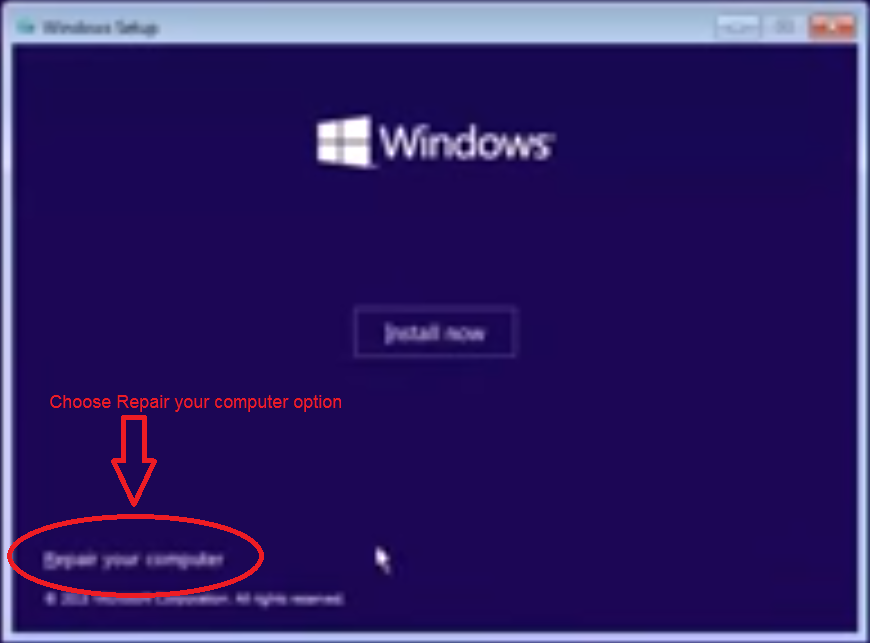
Step 2 - Change BIOS setting to boot computer from USB drive or press a key (which will give you option to boot computer from USB drive) to boot from USB . Choose "repair your computer" from below - 


Step 3- It will ask few options, choose suitable options - Troubleshoot > Advanced options > Command Prompt. 


At the command prompt, enter below commands and restart computer. After this you will be able to boot windows 10 in safe mode using F8 Key. 
 c:
 bcdedit /set {default} bootmenupolicy legacy

exit


Step 4- Now when your computer start keep pressing F8 during the boot process. Once it has been detected, you'll see the boot options menu where you can boot directly in to safe mode:-


In future if you want to disable or reverse this process use following command on the command prompt - 

bcdedit /set {default} bootmenupolicy standard

Now Windows 10 default faster boot will enable and F8 key will not give option to go in safe mode. 

--------------------

Sunday, 22 November 2015

Error failed to play test tone - Sound Won't Work on windows 7 8 and 10

No Sound, Error ! Failed to play test tone on windows 7, 8 10
Sound Won't Work on windows 7 8 and 10

Many users face this issue while working on windows machine. We are showing you few options which might resolve your windows machine sound issue.  You can try any of the below on your machine and let us know in comment section if it work for you so that it will help others- 

Option 1 

Go to your machine sound panel - either by control panel or type sound on start. Select your computer speaker and click on properties and then select advanced on next dialog box- Select "restore defaults"- Apply

Try this, it worked for many and may help you. See below

failed to play test tone

Option 2 

Open command prompt - (run as admin) and type command 
sfc /scannow. This will take some time and then you can reboot and check your computer speaker volume. See below - 

sfc /scannow
sfc /scannow

Option 3 

Go to your computer BIOS and enable Onboard audio if it is not enabled. 


Option 4

Go to Start -> Run -> services.msc


In "Services" window, select Windows Audio and restart this service. 

Option 5


Go to your machine sound panel - either by control panel or type sound on start. Select your computer speaker and click on properties and then select "enhancements" tab - > now click "Disable all Sound Effects" - >Click OK and apply
Try your sound now.


Option 6

If none of above work then you should remove your sound device driver and install latest drivers