Showing posts with label Windows 10. Show all posts

Thursday, 17 March 2016

Difference Between Windows 10 Enterprise and Professional

Difference Between Windows 10 Enterprise and Professional, Compare windows 10 editions features Windows 10 Pro vs Windows 10 Enterprise vs Windows 10 Home vs Windows 10 Education

Difference between windows all version for Existing Fundamentals

Difference between windows all version for Existing Fundamentals


Difference between windows all version for Management and Deployment - 

Difference between windows all version for Management and Deployment

Difference between windows all version for security - 

Difference between windows all version for security

Difference between windows all version for service features - 

Difference between windows all version for service features

Source - https://www.microsoft.com/en-in/WindowsForBusiness/Compare

Monday, 15 February 2016

how to show hidden files in windows 10

Windows 10 show hidden files and folders, how to show hidden files in windows 10, how to unhide hidden files windows 10, Windows explorer show hidden files -

To show the hidden files and folders, operating system files on your Windows 10 PC, you can follow simple steps given below - 

Step 1- Open "File Explorer" or "This PC (My computer icon)" on your computer - 


Step 2 - Click on view - 


Step 3 - Click on Options and this will open a box- 


Step 4 - Select "show hidden files, folders and drives option


Once you will select "show hidden files.." option, it will show all hidden files except system files. To show operating system files you need to uncheck from "hide protected OS files.."- See below - 


--------------------------

How to open add remove programs in windows 10

How to open add remove programs in windows 10 and uninstall a program, windows 10 uninstall programs, how to uninstall programs windows 10

You can open "add / remove programs" in windows 10 (given two methods) and select program / software which you want to uninstall - 

Method 1 - (by command)

Press the Windows + R key combination to open "run box", then type "appwiz.cpl" command and enter. It will open "Programs and Features"-


Above command will open "programs and features" box -


Now select program which you want to uninstall and click uninstall- This will prompt for uninstallation and then will remove program/software from your computer. 


Method 2 (without command)

Right click on Start button and choose "Control Panel" -


it will open up control panel- click "programs-uninstall a program" option and select a program from the list and uninstall it- 


This post will help you to open "add remove program" and uninstall a program from the list. 
--------------------------

Wednesday, 10 February 2016

How to Create Windows 10 bootable usb from iso

How to Create Windows 10 bootable USB from iso, how to make a bootable USB drive, free Microsoft software to create bootable USB

How to make a bootable USB drive - You can follow given steps for windows 7, 8, Vista and windows 10 - 

Step1 -To make bootable USB drive, download Free Microsoft Software from - https://www.microsoft.com/en-us/download/windows-usb-dvd-download-tool 

Step 2- Run setup file and install this - 


Step 3 - Once installed, open software/tool from Program menu. Choose windows "iso" file and click next. 


Step 4 - Insert USB Drive (make sure it has sufficient space) and select "USB Device" option (below)...


Step 5- It will take some time and will create windows USB bootable drive. You can use this USB bootable drive to install, repair window. 

Friday, 5 February 2016

How to activate windows 10

How to activate windows 10 Pro Enterprise Home, Windows genuine product key activation windows 10

Activate Windows 10 after reinstalling windows 10 - अगर आप Windows 10 का free upgrade करते है या फिर windows store से नया windows 10 buy करते है तो आप आपकी डिवाइस के लिए digital entitlement होते है | Digital entitlement का मतलब आपकी device पर आप windows 10 product key enter किये बिना ही reinstall कर सकते है | Reinstallation के time अगर windows 10 product key enter करने का message देता है तो आप skip कर सकते है एवं बाद मे installation complete होने के बाद जब कंप्यूटर online जाता है तो windows automatically activate हो जायेगा | 

How to activate windows 10 after windows 10 installation - 

अगर Windows installation के बाद आपने अभी तक genunine windows key enter नहीं की है तो आपको desktop पर windows is not activated का मैसेज आएगा | To activate windows 10 follow steps - 

Step 1 - Select the Start Start button and right click - > Choose system option - Then click Change Product key - 


Step 2 - Select Change product key, and then type the 25-character product key.


This will activate your windows 10. 


Sunday, 31 January 2016

How to boot Windows 10 in Safe Mode from Startup

How to boot Windows 10 in Safe Mode from Startup, Start windows 10 in safe mode, enable the F8 boot options menu in Windows 10

How to boot Windows 10 in Safe Mode (Using F8 key) - If you can login in windows 10 then its very easy to reboot system in safe mode but if windows gets corrupt and you get not successfully boot windows  10 then you can follow below step to get safe mode using F8 key - 

Step 1 - Use windows 10 bootable USB drive.

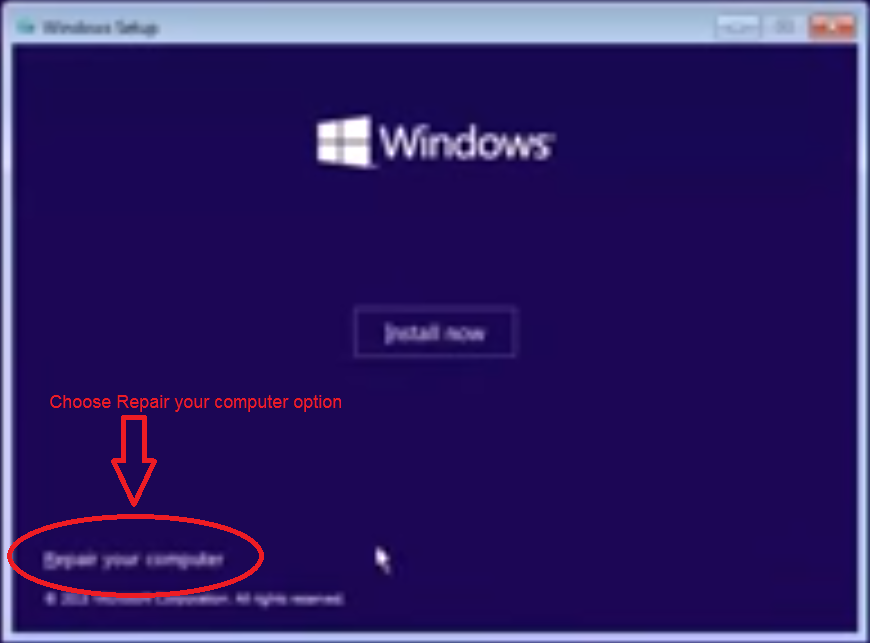
Step 2 - Change BIOS setting to boot computer from USB drive or press a key (which will give you option to boot computer from USB drive) to boot from USB . Choose "repair your computer" from below - 


Step 3- It will ask few options, choose suitable options - Troubleshoot > Advanced options > Command Prompt. 


At the command prompt, enter below commands and restart computer. After this you will be able to boot windows 10 in safe mode using F8 Key. 
 c:
 bcdedit /set {default} bootmenupolicy legacy

exit


Step 4- Now when your computer start keep pressing F8 during the boot process. Once it has been detected, you'll see the boot options menu where you can boot directly in to safe mode:-


In future if you want to disable or reverse this process use following command on the command prompt - 

bcdedit /set {default} bootmenupolicy standard

Now Windows 10 default faster boot will enable and F8 key will not give option to go in safe mode. 

--------------------

Saturday, 21 November 2015

Windows 10 keyboard shortcuts

Keyboard shortcuts - Windows 10 keyboard shortcuts


Here are some popular windows 10 keyboard shortcuts which are combination of two more more key. These windows 10 keyboard shortcut will help you in day to day windows activities - 

Friday, 20 November 2015

What is Credential Manager in Windows 10

What is Credential Manager in Windows 10
Credential Manager Command Line


जब आप, आपके computer से network मे किसी भी resource, computer or website को access करते हो तो  Windows credential manager आपके username and password को सेव करता है | बाद मे जब आप उन resources को वापस access करते है तो आपको आपके credential नहीं देने होते एवं windows, credential manager मे save username and password को use करके आपको authenticate करता है | credentials स्पेशल folders मे save होते है जिनको की vaults कहा जाता है | बाद मे अगर आप किसी भी network resource का username and password change करते है तो आपको credential manager मे भी specific vault मे जा कर पासवर्ड change करना पड़ सकता है otherwise window automatic login will not work for that resource. 

You can access "Windows Credential Manger" from - 

Click Start - Type credential manager and select from the list or go to control panel and search credential manager. 

credential manager
credential manager dialog box

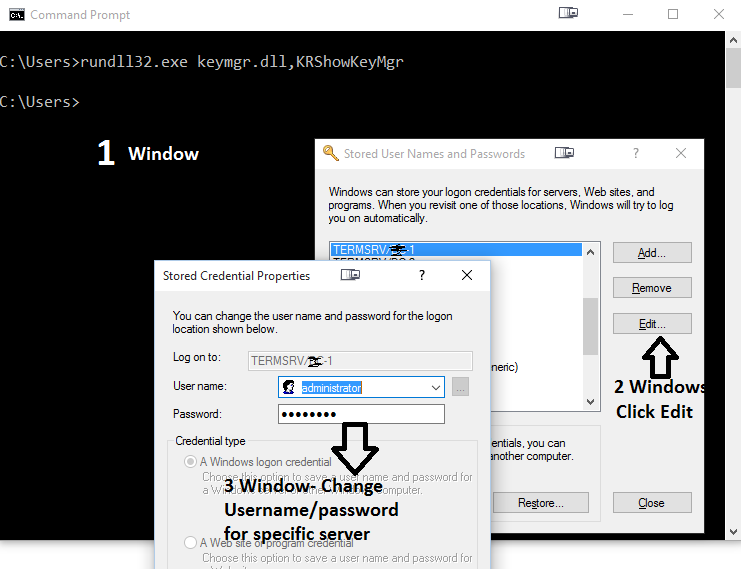
You can use command to open "credential manager" box - 

Open a command prompt, or enter the following in the run command -  rundll32.exe keymgr.dll,KRShowKeyMgr

credential manager command line


Thursday, 19 November 2015

How to enable or disable Hibernate in Windows 10

Disable hibernate in windows 10

You can ON or OFF hibernate in windows 10 using command:- 

Step 1 - Click Start (windows logo) and select "Command Prompt" as admin - To do right click on the "command prompt" and select "Run as administrator"

Or 

Press Windows + X keys to open menu and select Command Prompt (Admin) option - See below 

Windows + X key in windows 10

Step 2 - On the Command Prompt Type - powercfg /h ON - It will enable hibernate on your machine

Step 3 - On the Command Prompt Type - powercfg /h off - It will disable hibernate on your machine

See Screen shot below - 

enable or disable Hibernate in Windows 10
Enable or Disable Hibernate in Windows 10

Thursday, 8 October 2015

How to Set Your Default Apps in Windows 10

How to Set Your Default Apps in Windows 10


You may have many files, apps, protocols and programs in windows 10 and windows makes it easy for you to open up these files by setting up default programs for each file type 

You can set default apps from - 

Click on Start - > Settings 


Click on System - > Default Apps


Click on Default apps - > 


Click on + to add default apps 


Now if you will scroll down, you will see three options, here you can choose your default app by file type or protocol type - 

1. Choose default apps by file type - In the below example, you can associate .bmp file with paint, photos or with other application (by downloading from app store)


2. Choose default apps by protocol - In the below example you can choose IE or Edge with FTP Protocol...


3. Set default by apps - It will set default as per windows standard

--------------


how to change computer name in windows 10

How to change computer name in windows 10

To change computer name / PC name in windows 10 - Click on Start Button - >


change computer name in windows 10

Select settings - > 


change computer name in windows 10

Select System ->


On the next window - Click about ->


Click "Rename PC"


change computer name in windows 10

Type your new computer name and click next ->


change computer name in windows 10


-------------------------


Wednesday, 7 October 2015

How to change windows 10 startup programs

How to add or remove, change startup apps programs in Windows 10

To open startup in windows 10, you can open task manger and then go to startup tab, see below - > 

Just click on search box , type task manager ->

search Task Manager in Windows 10
Search Task Manager in Windows 10

Now click on Task Manager - > 


Open Task Manager in Windows 10

Go to Startup Tab in Task Manager - Here you will see all the apps and programs which are in the startup. You can disable or remove them from the list- 

Startup Tab in Task Manager - Windows 10

Now from the list you can select any program or app and right click - You will see disable option, use this if you want to disable this item from startup -


Disable app program from startup

----------------------


Tuesday, 11 August 2015

Windows 10 features in hindi

Top Windows10 Features in Hindi


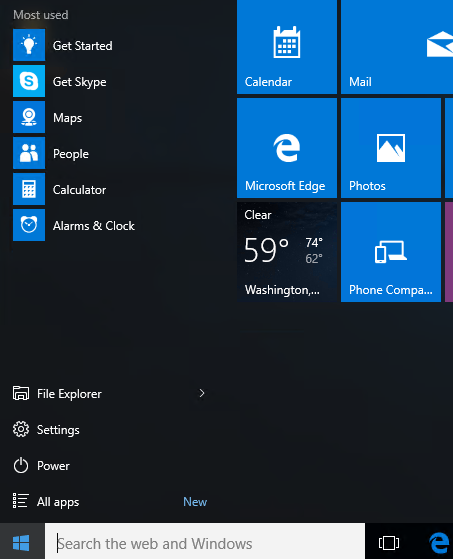
1.Start Menu is Back -  Start Menu को वापस से डेस्कटॉप के लोवर लेफ्ट hand कॉर्नर मे new stylish look के साथ दिया गया है| 

windows 10 Start  Menu
Windows 10 Start  Menu


2.Windowed Apps - Windows 10 मे app स्टोर को न्यू लुक दिया गया है | जब भी आप windows 10 app store ओपन करेंगे तो यह फुल स्क्रीन की जगह एक न्यू विंडो मे ओपन होगा एवम् यह app store पूरी तरह से mouse friendly भी होगा| 


windows 10 app store
Windows 10 App Store

3.New Browser-Edge - अब आप Internet Explorer को भूल जाए और Windows 10 का नया browser याद रखिये जो की पूरी तरह से नया बनाया गया है | इसके बहुत सारे features मे से एक खास feature है Cortana pop ups| जब आप web search करते है तो cortana supplementary information के साथ आपको guide करता रहता है | इसके साथ आप Edge के inbuilt toolbar use करके presentation एवं  share भी कर सकते है|


Windows 10 Edge
Windows 10 Edge


4.Virtual Desktops -  Windows 10 मे मल्टीप्ल डेस्कटॉप का ऑप्शन दिया है| इसमे अगर आप एक डेस्कटॉप पर किसी प्रोजेक्ट पर काम कर रहे है एवं उसमे बहुत सारी विंडोज ओपन है तो आप एक और वर्चुअल डेस्कटॉप ओपन कर सकते है जिसमे की आप अपने दूसरे प्रोजेक्ट के लिए काम मे ले सकते है| इस कांसेप्ट को वर्चुअल डेस्कटॉप कहते है| इसमे अगर आप एक डेस्कटॉप को close कर देंगे तो दूसरे डेस्कटॉप के आइटम्स भी एक डेस्कटॉप पर मूव कर जायेंगे | 


Windows 10 Virtual Desktop


5.Cortana - Cortana ने विंडोज 8.1 फ़ोन से डेस्कटॉप version मे एंट्री की है | Cortana start होने से पहले आपके PC information को एक्सेस करने की परमिशन लेती है एवं फिर आपको डेस्कटॉप access मे assist करती है| आप Cortana से text और voice commands से हेल्प ले सकते है | 

Windows 10 Cortana
Windows 10 Cortana


6.Action Center
7.Continuum
8.Xbox Streaming
9.New Command Prompt
10.Revamped core apps