Wednesday, 12 August 2015

What is ISP (Internet service provider) in Hindi

ISP (Internet service provider) definition in Hindi

ISP एक आर्गेनाइजेशन होती है जो की इंटरनेट सर्विस प्रोवाइड करती है | ISP इंटरनेट एक्सेस, Internet transitdomain name registration, web hosting एवं किसी भी दूसरी तरह की इंटरनेट सर्विस भी प्रोवाइड करती है | 

ISP इंटरनेट सर्विस प्रोवाइड करने के लिए अलग अलग तरह की टेक्नोलॉजी को use करती है| ये Technologies कंप्यूटर modem via टेलीफोन लाइन्स, टेलीविज़न केबल, Wi-Fi Ethernet, फाइबर ऑप्टिक्स हो सकती है| 

ये अलग अलग technologies customer की डिमांड के according use की जाती है - जैसे की users or small बिज़नेस can use कॉपर वायर्स via डायल up, DSL,cable modem or ISDN आदी|

ज्यादा डिमांड वाला users or big business हायर स्पीड DSL, Ethernet, metropolitan Ethernetgigabit EthernetFrame Relay, ISDN Primary Rate InterfaceATM (Asynchronous Transfer Mode) and synchronous optical networking (SONET) technologies को use कर सकते है| 

ISP को IAPs (Internet Access Providers) भी कहा जा सकता है| 


ISP
Internet Service Provider


Tuesday, 11 August 2015

Windows 10 features in hindi

Top Windows10 Features in Hindi


1.Start Menu is Back -  Start Menu को वापस से डेस्कटॉप के लोवर लेफ्ट hand कॉर्नर मे new stylish look के साथ दिया गया है| 

windows 10 Start  Menu
Windows 10 Start  Menu


2.Windowed Apps - Windows 10 मे app स्टोर को न्यू लुक दिया गया है | जब भी आप windows 10 app store ओपन करेंगे तो यह फुल स्क्रीन की जगह एक न्यू विंडो मे ओपन होगा एवम् यह app store पूरी तरह से mouse friendly भी होगा| 


windows 10 app store
Windows 10 App Store

3.New Browser-Edge - अब आप Internet Explorer को भूल जाए और Windows 10 का नया browser याद रखिये जो की पूरी तरह से नया बनाया गया है | इसके बहुत सारे features मे से एक खास feature है Cortana pop ups| जब आप web search करते है तो cortana supplementary information के साथ आपको guide करता रहता है | इसके साथ आप Edge के inbuilt toolbar use करके presentation एवं  share भी कर सकते है|


Windows 10 Edge
Windows 10 Edge


4.Virtual Desktops -  Windows 10 मे मल्टीप्ल डेस्कटॉप का ऑप्शन दिया है| इसमे अगर आप एक डेस्कटॉप पर किसी प्रोजेक्ट पर काम कर रहे है एवं उसमे बहुत सारी विंडोज ओपन है तो आप एक और वर्चुअल डेस्कटॉप ओपन कर सकते है जिसमे की आप अपने दूसरे प्रोजेक्ट के लिए काम मे ले सकते है| इस कांसेप्ट को वर्चुअल डेस्कटॉप कहते है| इसमे अगर आप एक डेस्कटॉप को close कर देंगे तो दूसरे डेस्कटॉप के आइटम्स भी एक डेस्कटॉप पर मूव कर जायेंगे | 


Windows 10 Virtual Desktop


5.Cortana - Cortana ने विंडोज 8.1 फ़ोन से डेस्कटॉप version मे एंट्री की है | Cortana start होने से पहले आपके PC information को एक्सेस करने की परमिशन लेती है एवं फिर आपको डेस्कटॉप access मे assist करती है| आप Cortana से text और voice commands से हेल्प ले सकते है | 

Windows 10 Cortana
Windows 10 Cortana


6.Action Center
7.Continuum
8.Xbox Streaming
9.New Command Prompt
10.Revamped core apps


What is VPN (virtual private network) in hindi

VPN definition in networking in Hindi

VPN stands for virtual private network. VPN एक नेटवर्क टेक्नोलॉजी होती है जिसमे पब्लिक इंटरनेट नेटवर्क मे सिक्योर कनेक्शन बनाया जाता है| बहुत सी companies, educational institutions एवं government organization रिमोट users को अपने  प्राइवेट नेटवर्क को सेक्युरली connect करने के लिए VPN Technology का use करतीं  है|  इसमे रिमोट users को इंटरनेट की help से अपने नेटवर्क को access देने के लिए remote users  के कनेक्शन से ऑफिस नेटवर्क तक VPN टनल बनायीं जाती है|

Private नेटवर्क create करने का VPN एक सस्ता एवं अच्छा तरीका है लकिन इसका disadvantage यह है की यह पूरी तरह से users की internet बैंडविड्थ पर depend करता है एवं users को परफॉरमेंस इशू भी आ सकते है| 

पब्लिक नेटवर्क मे, एक पॉइंट से दूसरे पॉइंट तक डेटा के सिक्योर ट्रांसपोर्ट के लिए VPN कुछ Protocols को use करता है| वो है - 

IP Security (IPSec)
Secure Sockets Layer (SSL) and Transport Layer Security (TLS)
Point to Point Tunneling Protocol (PPTP)
Layer 2 Tunneling Protocol (L2TP)


MS DOS Most useful commands in Hindi

Top 10 Windows MS DOS Commands 

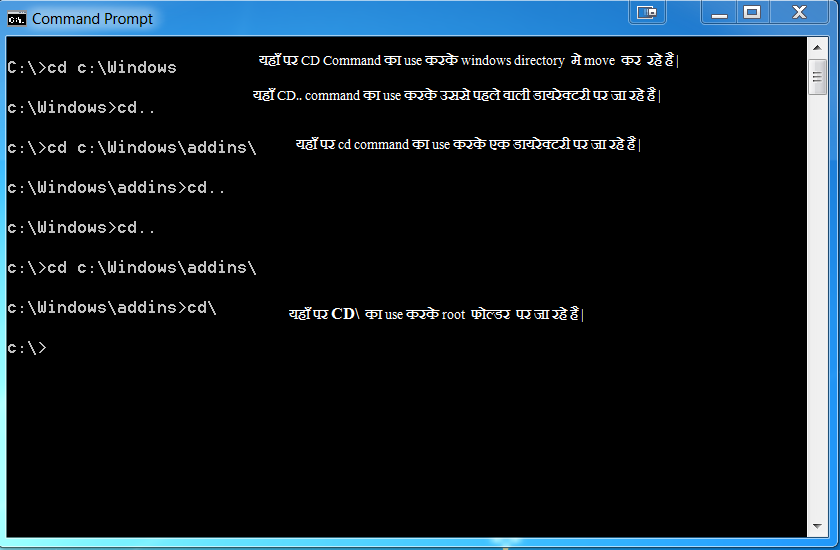
CD Command- यह command computer की किसी भी डायरेक्टरी मे जाने की लिए काम मे आता है | यह command एक इंटरनल कमांड होता है एवं यही विंडोज के सभी वर्शन मे मिलेगा - 

Example -  

CD MS DOS Command
CD MS DOS Command


DIR Command - इस कमांड्स से current directory मे available files and folders की लिस्ट देखि जा सकती है|  यह कमांड files and folders का  लास्ट modification date and time एवं उनका  साइज भी बताता है |

Example -

dir command
DIR Command

Other Useful switches in DIR Command -

C:\>dir /A - सभी available फाइल्स को उनके गुणों (attributes) के आधार पर लिस्ट करता है - 

Files Attributes are - 

D - Directory , R - Read Only, H- Hidden Files, S- System Files, A-Files ready for achieving

Copy Command-   इस कमांड की हेल्प से एक या एक से ज्यादा फाइल्स तो किसी लोकेशन पर copy किया जा सकता है| यह एक इंटरनल कमांड होता है |

Example -

copy command
MS DOS Copy Command

Del Command- यह command, computer पर से files को delete करने के लिए काम मे आता है| 

Example -  DEL [/P] [/F] [/S] [/Q] [/A[[:]attributes]] names

C:\>del filename.tmp - (This will remove 'filename.tmp' file)

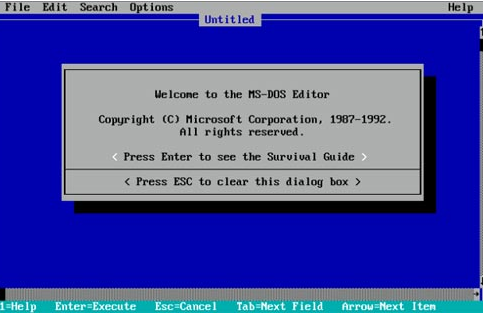
Edit Command-  इस कमांड की help से MS DOS editor open किया जा सकता है एवं इसको ASCII text files को create एवं edit करने के लिए use करते है | 

Example - EDIT [d:][path]filename [/B][/G][/H][/NOHI]


Move Command- इस command की help से files and folders को एक location से दूसरी location मे move किया जा सकता है | 

To move one or more files: - 
MOVE [/Y | /-Y] [drive:][path]filename1[,...] destination

To rename a directory: -
MOVE [/Y | /-Y] [drive:][path]dirname1 dirname2

Ren (rename) command- This command can be used to renames a file/directory or files/directories.

RENAME [drive:][path][directoryname1 | filename1] [directoryname2 | filename2]

Example- rename d:\dir-name newname (it will change 'dir-name' to 'newname')


REN [drive:][path][directoryname1 | filename1] [directoryname2 | filename2]

Deltree Command- इस कमांड की help से directory (जिसमे files एवं subdirectories हो) को remove किया जा सकता है | 

DELTREE [/Y] [d:]path [d:]path[...]

Example - DELTREE c:\main-dir (it will remove main-dir including all files and subdirectories contained in it

Cls Command- Cls is a command that allows you to clear the complete contents of the screen and leave only a prompt.


Format Command-

Wednesday, 5 August 2015

Starting Outlook in Safe Mode in Hindi

आउटलुक को safe mode  मे कैसे ओन करे 

Method 1 - 

आप अपने keyboard मे Ctrl key की press किये हुए, आउटलुक के शॉर्टकट आइकॉन को क्लिक करे -

outlooksafemode
Outlook in Safe Mode

आपके ऐसा करने पर Microsoft Outlook का एक डायलॉग बॉक्स open होगा - Press Yes


Method 2 -

कंप्यूटर के start button को press करने के बाद, search box open करे - टाइप outlook.exe /safe 


आपके ऐसा करने पर Microsoft Outlook का एक डायलॉग बॉक्स open होगा - Press Yes


Monday, 3 August 2015

Difference Between Sleep and Hibernate in Windows in Hindi

Sleep and Hibernate in Windows in Hindi

1. Sleep मे पावर ज्यादा consume होती है जबकि hibernation मे बैटरी पावर न के बराबर consume होती है 
2. Sleep मे कंप्यूटर की hard disk use मे नहीं आती है क्योकि programs RAM मे ही स्टोर होते है जबकि hibernation मे Laptop की hard disk मे computer की state सेव होती है|  
3. Sleep से laptop active mode मे आने मे बहुत कम समय लगता है जबकि hibernation मे comparatively ज्यादा समय लगता है|  

Sleep मे laptop को बहुत कम बैटरी या पावर की जरुरत होती है, अगर लैपटॉप sleep mode मे है एवं laptop की बैटरी बहुत कम है तो windows laptop को automatically hibernation mode मे ले जायगी|  


What is hibernation in computer in Hindi

Hibernation meaning in hindi

Hibernation एक power saving state होती है जिसको की मुख्य तौर पर laptops के लिए बनाया गया है| इसमे कंप्यूटर, आपके सारे open programs and files को open रखता है एवं laptop की मेमोरी से उठा कर लैपटॉप की hard drive पर उनको same condition मे save करता है| उसके बाद आपके लैपटॉप को turn off कर देता है| बाद मे जब लैपटॉप को वापस ON करते है तो प्रोग्राम्स को hard drive से same condition मे pick करके मेमोरी मे दाल देता है|

Hibernation के फायदे - 


1. यह फीचर तब use मे करना suitable होता है जब आपके कंप्यूटर की बैटरी कम हो एवं आपको बाद मे बैटरी पर काम करना हो| Hibernation कम बैटरी पर computer की state को save करने का एक बहुत अच्छा तरीका है| 
2. Hibernation state sleep स्टेट से less पावर consume करता है 
3. जब आप हाइबरनेशन से वापस नार्मल स्टेट मे आते हो तो आपको कंप्यूटर के सभी प्रोग्राम्स एंड फाइल्स उसी स्टेट मे वापस मिलते है जिससे आपका टाइम सेव होता है|