Monday, 5 October 2015

how to enable telnet in windows 7 8 10

Install enable telnet in windows 10
How to Activate /enable Telnet in Windows 7

Telnet is simple command based utility which allows you to connect with other computer or machine. By default, Telnet is not installed in Windows, and you need to manually install or activate it - 

To install Telnet Client -

Click on Start button
 Click Control Panel
Click Programs.
Under Programs and Features
Click Turn Windows features on or off.  
Windows Features dialog box, select the Telnet Client check box.
Click OK. The installation might take several minutes.
See below- 


Install telnet in Windows

You can enable telnet in Windows 10 using same steps above.

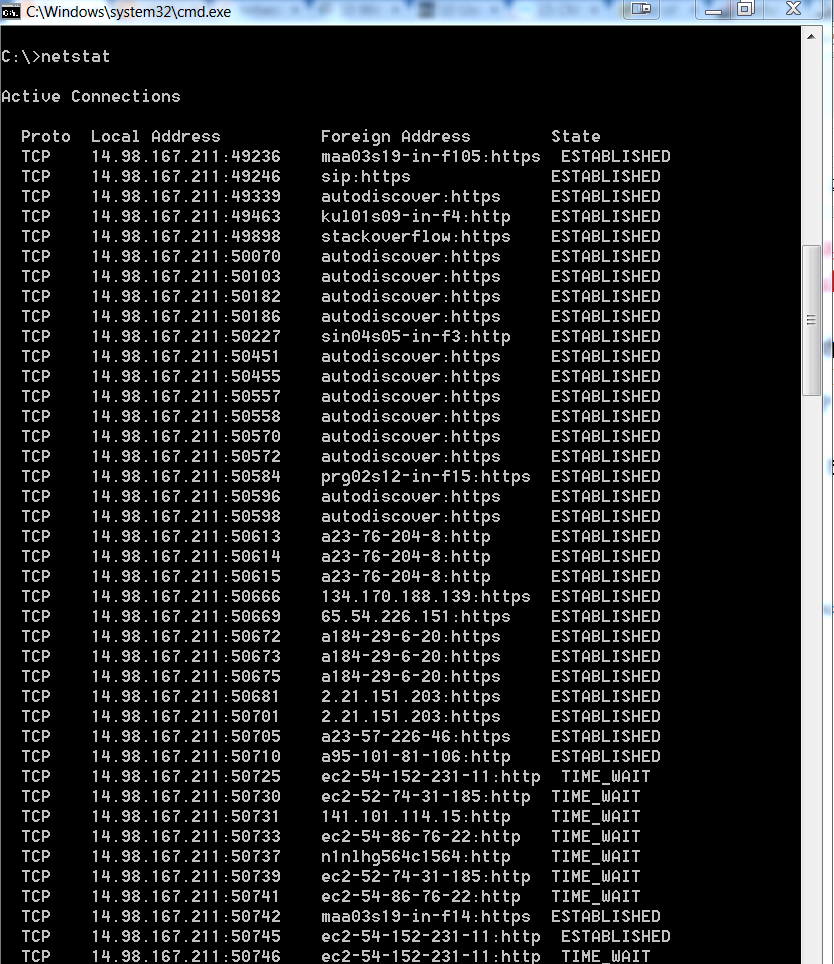
Netstat command windows popular command

In Hindi - What is Netstat command
 Windows popular command

Netstat एक्टिव TCP कनेक्शंस, पोर्ट्स जिन पर कंप्यूटर एक्टिव है, ईथरनेट - IPv 4 (for the IP, ICMP, TCP, and UDP protocols) एवं IPv 6 स्टैटिक्स और IP routing table बताता है | 

Without parameters के कमांड टाइप करने पर Active TCP connections को बताता है | 


netstat command for windows
netstat command


Syntax - 

Netstat [-a] [-e] [-n] [-o] [-p <Protocol>] [-r] [-s] [<Interval>]

netstat -a :- Displays all active TCP connections and the TCP and UDP ports on which the computer is listening

netstat -e :Displays Ethernet statistics, such as the number of bytes and packets sent and received. This parameter can be combined with -s.

netstat n : Displays active TCP connections, however, addresses and port numbers are expressed numerically and no attempt is made to determine names.

netstat -o : Displays active TCP connections and includes the process ID (PID) for each connection. You can find the application based on the PID on the Processes tab in Windows Task Manager. This parameter can be combined with -a, -n, and -p.

netstat -p Protocol : Shows connections for the protocol specified by Protocol. In this case, the Protocol can be tcp, udp, tcpv6, or udpv6. If this parameter is used with -s to display statistics by protocol, Protocol can be tcp, udp, icmp, ip, tcpv6, udpv6, icmpv6, or ipv6.

netstat -s : Displays statistics by protocol. By default, statistics are shown for the TCP, UDP, ICMP, and IP protocols. If the IPv6 protocol for Windows XP is installed, statistics are shown for the TCP over IPv6, UDP over IPv6, ICMPv6, and IPv6 protocols. The -p parameter can be used to specify a set of protocols.

netstat -r : Displays the contents of the IP routing table. This is equivalent to the route print command.

Example - 

To display both the Ethernet statistics and the statistics for all protocols, type:  netstat -e -s

To display the statistics for only the TCP and UDP protocols, type: netstat -s -p tcp udp

To display active TCP connections and the process IDs every 5 seconds, type:  netstat -o 5

To display active TCP connections and the process IDs using numerical form, type:  netstat -n -o


Sunday, 4 October 2015

Is my PC running the 32-bit or 64-bit version of Windows

How to determine Check if you have a 64

bit or 32-bit Windows OS


Know your Windows OS is 32 bit or 64 Bits 

1. In Windows Go to Start - > My Computer - > Right click - > Click Properties - > See below box 

how to check Windows 32 bit or 64 bit
Windows 32 bit or 64 bit 

2. You can also open above box by - > Control Panel - > System and security - > System 


difference Between 32 Bit vs 64 Bit Operating Systems in Hindi

In Hindi - Understand The differences between 32-bit vs. 64-bit operating systems explained 


बिट्स क्या होती है - 

एक प्रोसेसर मे "नंबर ऑफ़ बिट्स" का मतलब डेटा टाइप का साइज होता है जो की प्रोसेसर हैंडल कर सकता है एवं जो रजिस्ट्री का साइज होता है | एक 64 bits प्रोसेसर 264 computational values, including memory addresses स्टोर कर सकता है जिसका मतलब  ये 32 bits प्रोसेसर से 40 लाख गुना ज्यादा फिजिकल मेमोरी को एक्सेस कर सकता है |


ज्यादा बिट क्यों ? 

More बिट्स का मतलब डेटा जयादा chunk मे प्रोसेस किया जा सकता है मीन्स मोर accurately and fast | मोर बिट्स का मतलब ये भी हो सकता है की हमारा system फिजिकल memory की ज्यादा लोकेशंस को पॉइंट कर सकता है | 

Differences between 32-bit vs. 64-bit -

32 bits सिस्टम केवल 4 GB मेमोरी को एक बार मे पॉइंट कर सकते है जबकि अब बहुत सारी नयी applications आ रही है जिनमे 4 GB से ज्यादा मेमोरी की जरुरत होती है तब हमे 64 बिट सिस्टम की जरुरत होती है | 

64 bits प्रोसेसर per सेकंड कैलकुलेशन ज्यादा परफॉर्म कर सकते है जिससे कोई भी प्रोसेस करने की स्पीड 64 bits सिस्टम मे 32 बिट्स सिस्टम से ज्यादा होती है | 

32-bit and 64-bit combinations and compatibility :-  64 bits OS को run करने के लिए 64 bits CPU का होना जरुरी है | 64 bits एप्लीकेशन को रन होने के लिए 64 bits OS एवं 64 bits CPU का होना जरुरी है | 


What is Nbtstat Command in Windows with Example


Understand Nbtstat Command in Windows with Example

Nbtstat कमांड NetBIOS name resolution के प्रॉब्लम्स को troubleshoot करने के लिए use करते है | 

There are several commands involved with Nbtstat that allows several options such as: local cache lookup, WINS server query, broadcast, LMHOSTS lookup, Hosts lookup, and it is not for DNS server query.

Nbtstat Syntax: nbtstat [-a RemoteName] [-A IPAddress] [-c] [-n] [-r] [-R] [-RR] [-s] [-S] [Interval]

Nbtstat Command
Nbtstat Command


nbtstat - a < name > command performs a NetBIOS adapter status command on the computer name specified by < name> . The adapter status command returns the local NetBIOS name table for that computer as well as the MAC address of the adapter card. 

The nbtstat -A < IP address > command performs the same function using a target IP address rather than a name.


nbtstat -a command
nbtstat -a command

nbtstat -A command
nbtstat -A command

nbtstat -c: displays the contents of the NetBIOS name cache, the table of NetBIOS names and their resolved IP addresses.

nbtstat -n: displays the names that have been registered locally on the system.


nbtstat -c -n command

nbtstat -r: displays the count of all NetBIOS names resolved by broadcast and querying a WINS server.


nbtstat -R: purges and reloads the remote cache name table.

nbtstat -RR: sends name release packets to WINs and then starts Refresh.

nbtstat -s: lists the current NetBIOS sessions and their status, including statistics.

nbtstat -S: lists sessions table with the destination IP addresses.

What is Windows Internet Name Service (WINS) in Hindi

In Hindi - What is WINS Server in Windows -
WINS (Windows Internet Name Service) definition 

Windows Internet Name Service (WINS)  computer name registration and resolution service  है जो की computer NetBIOS नाम को IP एड्रेस पर मैप करती है | जब WINS सर्वर को windows network मे deploy  किया जाता है तो windows network users, नेटवर्क रिसोर्सेज को नाम से access कर सकते एवं IP एड्रेस याद रखने की जरुरत नहीं होती| 

WINS एवं DNS दोनों TCP/IP network मे Name रेसोलुशन सर्विस  होती है| WINS NetBIOS namespace मे Name resolve करती है जबकि DNS DNS domain namespace मे Name resolve करती है| WINS मुख्यः रूप से ओल्ड windows एवं उन applications को support करती है जो की NetBIOS use करती है | Windows 2000, Windows XP, and Windows Server 2003 use DNS names in addition to NetBIOS names. 

Environments that include some computers that use NetBIOS names and other computers that use domain names must include both WINS servers and DNS. विंडोज नेटवर्क मे अगर ओल्ड विंडोज versions के machines एवं सर्वर है जो की DNS को सपोर्ट नहीं करते या फिर नेटबीओस नाम रेसोलुशन use करते है तो आप WINS सर्वर को नहीं हटा सकते क्यों की फिर वो machines या NetBIOS पर डिपेंडेंट एप्लीकेशन will not resolve Name | 

Now in windows 2012 and Windows 2012 R2 -      

WINS will also be required if you have any legacy applications still running that have a dependency on NetBIOS name resolution either because of the way the application is configured or how it has been coded. Finding such applications can be a challenge.

Thursday, 1 October 2015

The proxy server isn't responding error message

Internet Data Card-wireless card internet problem- 

The proxy server isn't responding error message-Connectivity issues-can ping out but no browsing


यहाँ पर जो error मैसेज बताया गया है वो बहुत सारी अलग अलग सिचुएशन मे आ सकता है पर ये solution, specifically मेरी प्रॉब्लम के लिए है | अगर आप भी same प्रॉब्लम फेस करते है तो ये solution try कर सकते है | 


When i was using my internet data card ( Tata photon +), after connection i was able to ping websites so it means internet was working but when i was trying to open website in browsers - it was giving below error message - 

The Proxy Server isn't responding

I checked all the settings but nothing worked -at last i did below change and internet start working, so try this - that might help you- 

Go to Internet Options - Connection - Settings and Uptick "automatically detect settings"  - > OK


Go to Internet Options - Connection - Settings