Thursday, 12 November 2015

Msconfig Command Windows

What is Msconfig Command in Windows and how it works-

MSconfig Microsoft की एक system configuration utility है जो की windows के सभी version मिलती है | यह utility विंडोज 2000 को छोड़ कर , 1998 से लेकर आज तक विंडोज के सभी versions मे आ रही है | 

यह windows के startup process को troubleshoot करने के लिए काम मे आती है | इसको use करते हुए सिस्टम की startup services को, सॉफ्टवेयर को and device drivers को disable या enable कर सकते है | 

How to Open MSCONFIG :- 

Click on Start Button and type "msconfig" (either on run or search) - this will open below box :- 

MSCONFIG - General Tab 

msconfig windows utility

MSCONFIG - BOOT Tab -

यह TAB boot.ini फाइल मे जाये बिना ही आपको यहाँ से उसको edit करने की facility देती है | यहाँ से आप विंडोज टाइम आउट टाइम, boot log, OS इनफार्मेशन सेटिंग्स चेंज कर सकते है | यहाँ से आप safe boot ऑप्शन सेलेक्ट करके विंडोज को safe boot मे भी लोड कर सकते है |


MSCONFIG Services Tab 

इस TAB से आप विंडोज मे run हो रही किसी भी program की service को enable या disable कर सकते है 


MSCONFIG Startup Tab 

इस TAB से आप कंप्यूटर के स्टार्ट होते ही, स्टार्ट होने वाले प्रोग्राम्स को start or stop कर सकते है | ये startup programs ही कंप्यूटर को स्लो करते है क्योकि कभी कभी बहुत से unwanted programs होते है जो स्टार्टअप मे होते है और जो कंप्यूटर के स्टार्ट प्रोसेस को स्लो करते है | 


Tuesday, 10 November 2015

What is 4K in Hindi

What is 4k technology in Hindi 
4K resolution = 4096 pixels 2160 pixels 
UHD resolution = 3840 pixels × 2160 pixels


4K term का meaning है resolution of electronic display | यहाँ पर डिस्प्ले आपके टीवी, लैपटॉप या किसी भी इलेक्ट्रिक device पर हो सकता है जबकि resolution का मतलब length एवं width मे कितने pixels use होंगे | 

Pixels डॉट्स होते है जिसको combine करके कोई भी इमेज बनती है एवं जितने ज्यादा pixels होंगे उतनी ही अच्छी पिक्चर की क्वालिटी होगी | जब कम रेसोलुशन की device होती है तो पिक्चर मे शार्पनेस एवं क्लैरिटी नहीं होती है इसलिए ही हम prefer करते है की ज्यादा pixels वाली डिवाइस use करे जिससे पिक्चर की quality better हो | यहाँ पर जब हम 4K की बात कर रहे है तो इसको बहुत अच्छा माना जा रहा है क्योकि इसमे बहुत high resolution use किया गया है | 

4K मे 4096 pixels horizontal line of display मे एवं 2160 pixels vertically होते है | इसको 4K इसलिए कहा जा रहा है क्योकि इसमे horizontal side मे करीब करीब 4 thousands pixels है जो की 1080p का four times high resolution है 1080p को हम Full HD कहते है |

ज्यादातर UHD, टीवी स्क्रीन मे आ रहे है जिनका resolution 3840 X 2160 है एवं commercial लेवल पर इनको भी 4K कहा जा रहा है क्योकी ये regular HD resolution का  4 times resolution ऑफर कर रहे है | जबकि more specialized context मे, प्रॉपर 4K वही होता है जो की आजकल डिजिटल कैमरा रेसोलुशन के स्टैण्डर्ड मे मिल रहा है जिसमे 4096 X 2160 पिक्सेल रेसोलुशन है with 1.9:1 (horizontal: vertical) as opposed to common TV based 3,840p width and aspect ratios of 16:9 or 1.78:1. 

इस प्रकार आप देख सकते है की बहुत सारे manufacturers अपने product को UHD 4K, और सिम्पली 4K बोल कर advertise कर सकते है जबकि 4K term traditionally reserved है the cinematic, DCI resolution के लिए | 


What is sleep mode in laptop

In Hindi - What does sleep mode do
Explain What is Sleep mode in Laptop or Sleep Mode in Windows 


Sleep Mode windows computer की एक power saving स्टेट होती है जो कंप्यूटर की लो पावर स्टेट मे आपके ओपन प्रोग्राम्स एंड फाइल्स को उसी स्टेट मे save करती है | Sleep mode मे कंप्यूटर की current running स्टेट को मेमोरी मे रखने की लिए low power काम मे आती है जबकि आपके कंप्यूटर की किसी भी पार्ट को पावर की जरुरत नहीं होती एवं वो पूरी तरह से turn off हो जाते है | जब वापस आप अपने कंप्यूटर को turn on करते है तो ये कुछ सेकण्ड्स मे ही वापस अपनी पुरानी running state मे आ जाती है | इस स्टेट मे कंप्यूटर को shut down या hibernate करने की तुलना मे ज्यादा पावर की जरुरत होती है | 

Sleep mode option तब काम मे लेना चाहिए जब आप बहुत short time के लिए कंप्यूटर से दूर जा रहे है या काम नहीं कर रहे है | इस शार्ट टाइम मे स्लीप मोड आपके लैपटॉप बैटरी or इलेक्ट्रिसिटी save करती है एवं जब आप वापस आ कर स्लीप मोड से रनिंग मोड मे आते है तो आपका कंप्यूटर हमेशा उसी स्टेट मे मिलता है जहा आप उसको छोड़ कर गए थे इसलिए ये टाइम सेविंग मोड भी कहलाती है | 

स्लीप मोड से वापस कंप्यूटर को रनिंग स्टेट मे लाने के लिए power button, mouse or keyboard keys press की जा सकती है | 

Monday, 9 November 2015

How to Back Up Barracuda NG Firewall Configuration file


How to back up and restore 
Barracuda NG Firewall configuration file

To back up the Barracuda NG Firewall - > 
1. Log into the Barracuda NG Firewall.
2. Go to the Configuration Section 
3. Click on Configuration Tree.
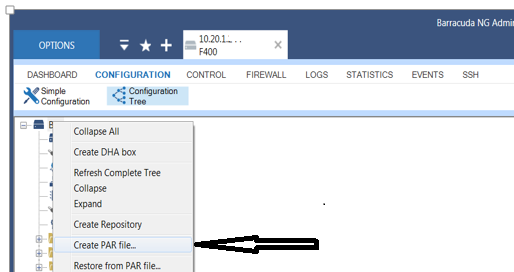
4. Right-click Box and select Create PAR file and Save file to a suitable location...

To understand this - See below :- 

back up and restore Barracuda NG Firewall configuration file
back up and restore Barracuda NG Firewall configuration file


back up and restore Barracuda NG Firewall configuration file
back up and restore Barracuda NG Firewall configuration file


To Restore the Barracuda NG Firewall Config from backup file -


1. Log into the Barracuda NG Firewall
2. Go to the Configuration Section 
3. Click on Configuration Tree
4. Right-click Box and select Restore from PAR file. Select the required PAR file.
5. Click Activate. 
6. Go to the Control > Box page.
7. In the left navigation pane, expand Operating System and click Firmware Restart. Click Yes to confirm that you want to restart the subsystem.
8. Expand Network and click Activate new network configuration.
9. Select one of the following network configuration activation modes:  
  a) If the new management IP address and management port are different from the ones currently configured on the appliance, click Force.

  b) If you are continuing to use the same management IP address and management port, click Failsafe.


What is hiberfil.sys file | Computer hibernation in windows

In Hindi - What is hiberfil.sys file and its function 
What is Computer hibernation in windows
हाइबरनेशन क्या है | 

Hibernation mode आपके PC की current state को सेव करने के लिए hiberfil.sys file को use करता है | एवं जब तक आप आपके कंप्यूटर के hibernation को disable नहीं कर देते आप इस फाइल को remove नहीं कर सकते है | 


hiberfil.sys
hiberfil.sys

Windows OS मे हाइबरनेशन एक पावर सेविंग state होती है | हाइबरनेशन मे आपके ओपन डाक्यूमेंट्स एंड प्रोग्राम्स को hard disk मे उसी स्टेट मे save कर दिया जाता है एवं उसके बाद कंप्यूटर को turn off कर देता है | विंडोज मे जितनी भी पावर सेविंग स्टेट होती है उनमे से hibernation सबसे कम पावर use करता है | आपको आपके लैपटॉप मे हाइबरनेशन तभी use करना चाहिए जब आपको पता हो की आप लैपटॉप को extended period के लिए नहीं use करोगे एवं उस टाइम मे आपको battery को charge करने का टाइम भी नहीं होगा | 

For Example - आप रात को Computer मे काम करने के बाद जब सोने जा रहे हो तब आप कंप्यूटर को हाइबरनेट करना चाहेंगे to save इलेक्ट्रिसिटी एवं battery power | किन्तु हाइबरनेट मे कंप्यूटर को वापस अपने running state मे आने मे ज्यादा टाइम लगेगा | 


hibernation
Hibernation
 हाइबरनेशन मे आप आपके लैपटॉप बैटरी को लैपटॉप से बाहर भी निकाल सकते है एवं जब वापस बैटरी को लैपटॉप मे लगाओगे तो यह आपके लैपटॉप के प्रोग्राम्स एवं ओपन फाइल्स को उसी स्टेट मे खोल देगा | 

हाइबरनेट मोड मे PC को वापस Turn On हो कर अपनी running state मे आने मे sleep mode की तुलना मे ज्यादा टाइम लगता है | एक कंप्यूटर जो की हाइबरनेट स्टेट मे होता है वह उतनी ही power use करता है जितना की एक Computer shut down स्टेट मे use करता है | 

Disable hiberfil.sys in windows 7 / 8.1

How to delete or disable hiberfil.sys on windows 7 / 8.1 

hiberfil.sys file is related to hibernation so if you do not need hibernation you can delete hiberfil.sys file by disabling a simple window command - 

Follow these steps: - 

Step 1- 

Click Start, and then type cmd in the Start Search box.

Right-click Command Prompt, and then select Run as Administrator option.

Step 2 -

At the command prompt, type 
:> powercfg.exe /hibernate off 
then press Enter.

delete or disable hiberfil.sys on windows 7
delete or disable hiberfil.sys on windows 7

This will delete hiberfil.sys file and disable hibernation on your machine. If you want to enable hibernation again Click here...


CiSCO Device configuration backup using TFTP Services

How to take backup of CISCO router / switch using TFTP Server

Step 1 

Download tftp server on your PC from - 


Step 2 

Install TFTP -  Configure Root Directory and other settings ...
see below :- 

Set root Directory to C Drive or any other location where you want to save config backup - 

TFTP Server root directory


Step 3 

Enable telnet service on your PC and open command prompt -

type command -> telnet CISCO-device-IP
> give admin password
> go to "en" 
type - >copy running-config tftp
give your TFTP IP ( where it is installed) >10.20.1.X
type file name> cisco-backup

Done- See below  ( you can open tftp server same time and see its status as below) 

See below - All the above command in a single window- 

backup cisco config using tftp server and telnet command
How to take Cisco device Config file backup using telent and tftp server 

Now you should go to your tftp server root directory and check file....


You can also visit CISCO website for more information and different ways to take backup and restore CISCO config files at - 

http://www.cisco.com/c/en/us/support/docs/ios-nx-os-software/ios-software-releases-122-mainline/46741-backup-config.html